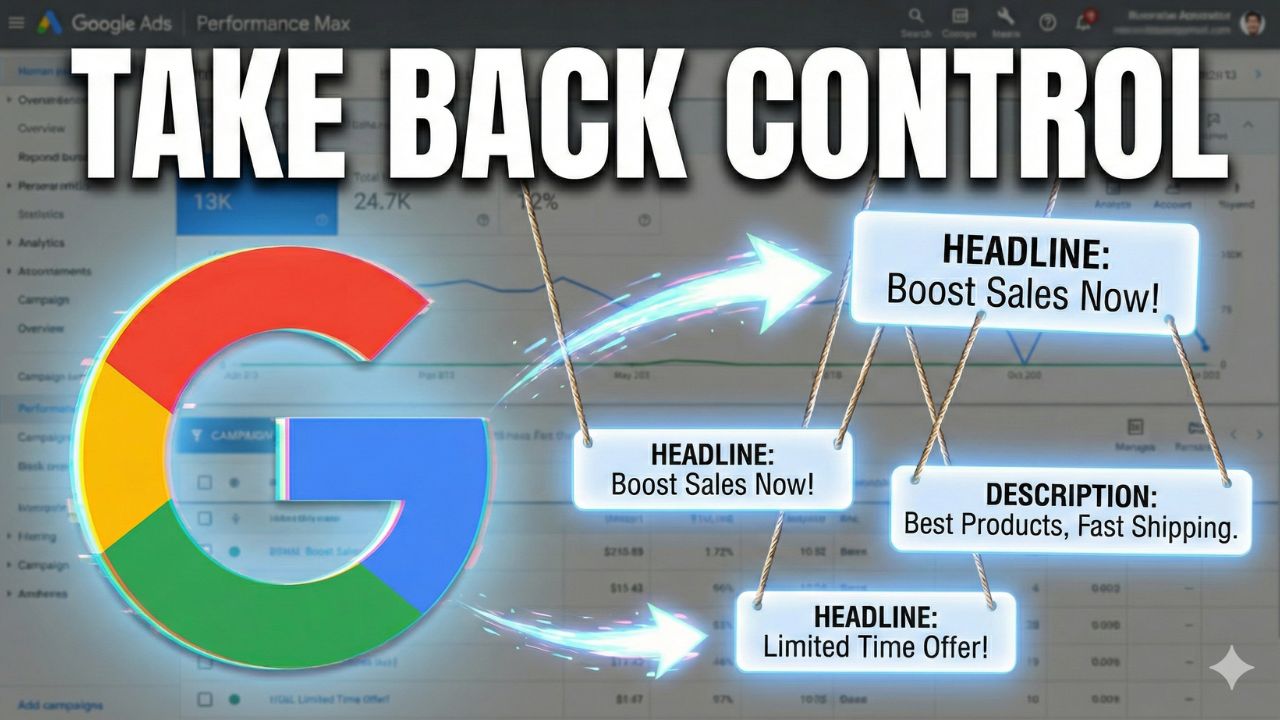
Performance Max can write your ads automatically. Headlines, descriptions, even copy you never typed.
Sounds helpful? Not when those AI ads show up without you knowing.
Here's how to find these hidden assets and take back control.
Google now has a feature that writes extra assets for your Performance Max campaigns. You don't ask for it - it just happens.
In your Performance Max settings, look for "Asset Optimization." Inside that, there's "Customization for Text." When this is on (and it usually is), Google writes headlines and descriptions for your Search and Display ads.Performance Max Performance Max

This means Google's AI creates ad copy for your brand - not the messaging you intentionally created.
Here's how to see what Google wrote for you:
Step 1: Go to Asset Groups Click on your Performance Max campaign, then "Asset Groups." Click "View Details" under the summary.
Step 2: Check the Source Look for a column Added by. You'll see two options. "Advertiser" - those are your assets, and "Google AI" - those are Google's assets.
Step 3: Check Performance Filter by headlines or descriptions. Sort by cost and check ROAS to see if Google's copy helps or hurts.Performance Max

You might be shocked. Sometimes Google's AI assets work better than yours. Other times, they're confusing - like showing "Made in USA" and "Made in U.S.A." separately.
Here's what catches people off guard: Even Feed-Only Performance Max campaigns (where you expect only Shopping ads) can show Search and Display ads if "Text Customization" is on.
Your "product-only" campaigns might run text ads you never made, using Google's copy that doesn't match your brand.
If you run Feed-Only campaigns, check that setting now. You might find assets you didn't know existed.
Once you find these auto ads, here's how to stop serving them:
Go to campaign settings, find "Asset Optimization," and turn off "Text Customization."
Your old auto ads will stay in the list but stop showing. You can review them before deleting completely.
Managing multiple Performance Max campaigns? There's a trick most people miss:
Go to "Performance Max Campaigns" in the top menu, then switch to "Assets" view. This shows all assets across your whole account.
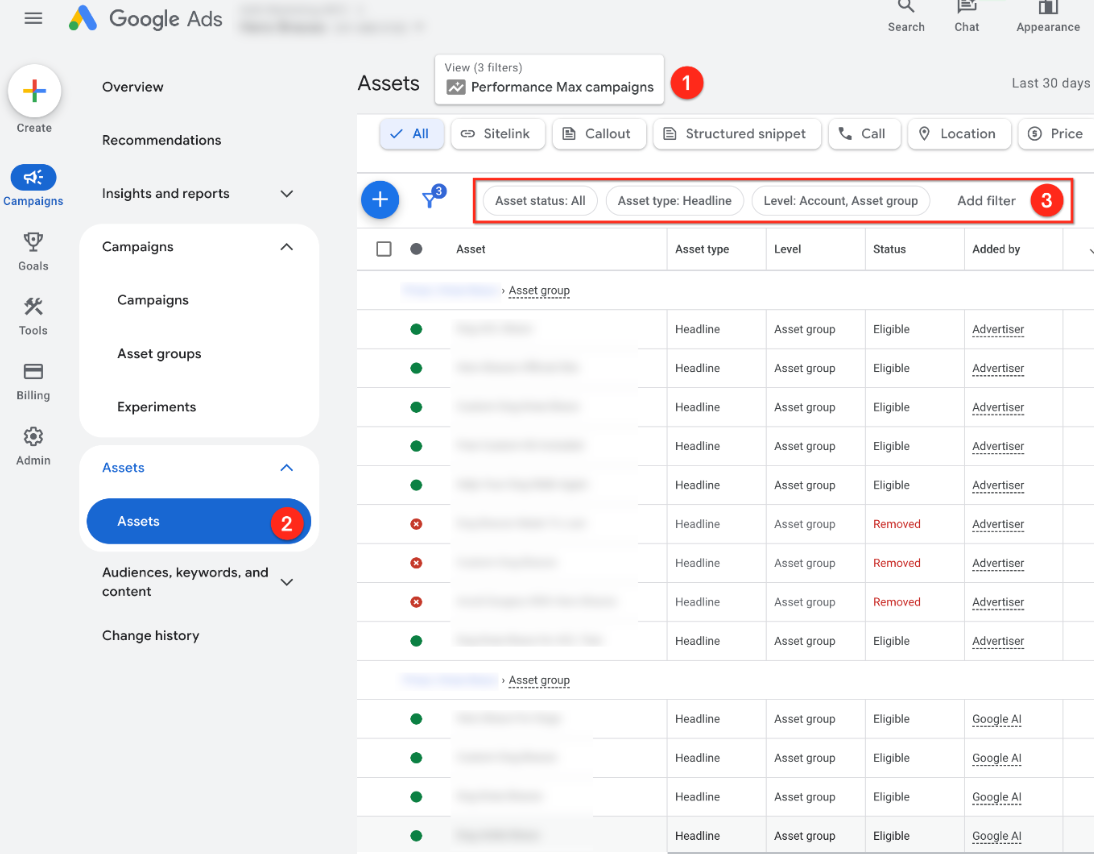
You can't edit here, but it's great for:
This view often shows problems you miss when checking campaigns one by one.
Auto ads affect more than just copy:
Brand Control: Automatic assets mean Google decides your messaging, so you lose control over how your brand appears.
Performance Analysis: If you don't know which assets Google creates, you can't judge what messaging works or make good decisions.
Budget Efficiency: You might pay for auto-generated copy that doesn't reflect your brand and hurts your ROAS.
Auto ads can save time or create chaos. You need to know when they're active, how they perform, and when to step in.
Don't assume your Performance Max campaigns only show your ads. Check your asset groups. You might be surprised what Google wrote for your brand.
The goal isn't to delete all auto assets - some might help your performance. The goal is knowing what's running and deciding if it fits your strategy.
Do this today: Check your Performance Max campaigns for auto assets. Look at their performance. Decide if they help or hurt your brand. Then check regularly as Google keeps making new ones.
Your brand voice is too important to leave to AI.
.png)
.png)


.png)